How To Install IPTV Danmark On Smart TV, Android, iOS, MAG, Firestick & Formuler
Discover the easiest way to set up your IPTV Danmark subscription and enjoy fast, stable streaming on any device. Follow our step-by-step IPTV installation tutorial to access thousands of TV channels and VOD content across Denmark..
Android
How To Install IPTV Danmark On Android (Phone, Tablet & Android TV)
Step 1: Make sure your Android device is connected to a stable internet connection.
Step 2: Download a reliable IPTV player from the Google Play Store such as IPTV Smarters, TiviMate or XCIPTV.
Step 3: Open the IPTV application and enter your IPTV Danmark login details or playlist URL provided after subscription activation.
Step 4: Save the settings and wait a few seconds for channels and VOD content to load.
Step 5: Select your favorite Danish or international channel category and start streaming instantly.
✔ Your Premium IPTV Danmark subscription is now successfully installed on your Android device.
Apple / IOS
How To Install IPTV Danmark On iPhone & iPad (iOS)
Step 1: Ensure your iPhone or iPad is connected to a stable Wi-Fi or mobile data connection.
Step 2: Download an IPTV player from the Apple App Store such as IPTV Smarters Lite, IBO Player or IPTVX.
Step 3: Launch the application and enter your IPTV Danmark subscription login details or M3U playlist link.
Step 4: Save your configuration and wait a few moments for channels to load.
✔ Your Premium IPTV Danmark service is now ready to use on your iOS device.
Smart TV
How To Install IPTV Danmark On Smart TV
Step 1: Download an IPTV player application from your Smart TV App Store such as IPTV Smarters, IBO Player or Smart IPTV.
Step 2: Open the application and note the MAC Address or Device ID if required.
Step 3: Send this information to our IPTV Danmark support team via WhatsApp or email to activate your subscription.
Step 4: After activation, restart the application and wait a few seconds for channels to load.
✔ Your Premium IPTV Danmark subscription is now ready on your Smart TV.
MAG BOX
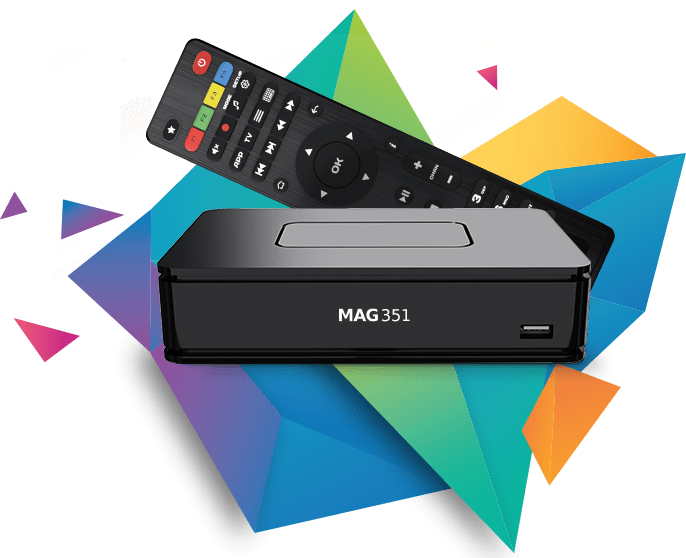
How To Install IPTV Danmark On MAG Box
Step 1: Locate the MAC Address displayed on your MAG device screen.
Step 2: Send the MAC Address to our IPTV Danmark team for activation.
Step 3: After activation, you will receive the portal URL.
Step 4: Enter the portal URL in your MAG settings and restart the device.
✔ IPTV Danmark is now successfully installed on your MAG Box.
Windows/Mac
How To Install IPTV Danmark On Windows & Mac
Step 1: Download an IPTV player such as VLC Media Player or IPTV Smarters.
Step 2: Open the application and enter your IPTV Danmark login details or M3U playlist link.
Step 3: Save settings and wait for channels to load.
✔ You can now stream IPTV Danmark content on your computer.
Windows/Mac
How To Install IPTV Danmark On Formuler Box
Step 1: Turn on your Formuler device and connect it to the internet.
Step 2: Open MYTV Online application.
Step 3: Enter your portal URL or login details provided after subscription.
Step 4: Restart the application to load channels.
✔ Premium IPTV Danmark is now active on your Formuler box.
Windows/Mac
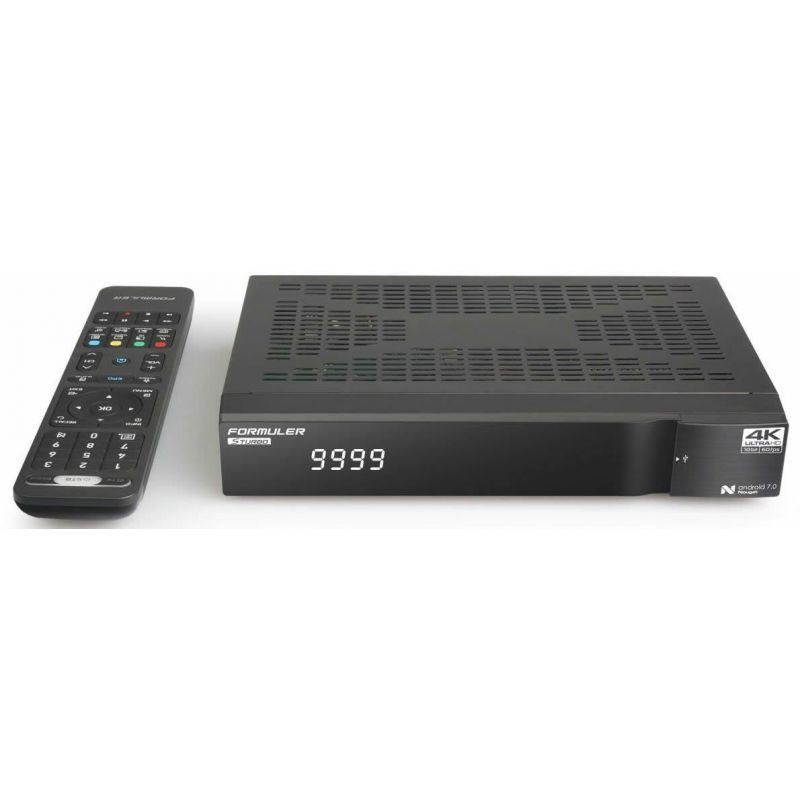
How To Setup IPTV Danmark On Formuler STB-6500
Step 1: Connect Your Device
Turn on your Formuler STB-6500 and connect it to the internet using Wi-Fi or Ethernet cable for the best streaming stability.
Step 2: Open MYTV Online App
From the home screen, launch the MYTV Online or MYTV Online 2 application available on your Formuler device.
Step 3: Add IPTV Portal
Select “Add Portal” and enter the Portal URL provided by IPTV Danmark support after your subscription is activated.
Step 4: Enter Login Details
If required, enter your username and password or MAC-based activation details.
Step 5: Save & Load Channels
Save the settings and wait a few seconds while the application synchronizes and loads all IPTV channels and VOD content.
✔ Your IPTV Danmark subscription is now successfully installed and ready to use on Formuler STB-6500.